
Workbench Interface Guide for Test Case Updates
Accessing Workbench
Through Test Suite
- Click "ALL TEST SUITES" breadcrumb.
- Select your test suite.
- Click the "Workbench" button.
Updating Test Cases
Single Test Updates
- Editing Request Configuration
{
  "method": "GET",
  "url": "",
  "headers": {
    "Authorization": "Bearer "
  },
  "path_params": {},
  "query_params": {
    "page_size": ""
  },
  "json_body": {}
}- Making Changes
- Edit directly in the JSON editor
- Modify necessary fields
- Use variables with syntax
- Maintain proper JSON formatting
| Original | Updated |
|---|---|
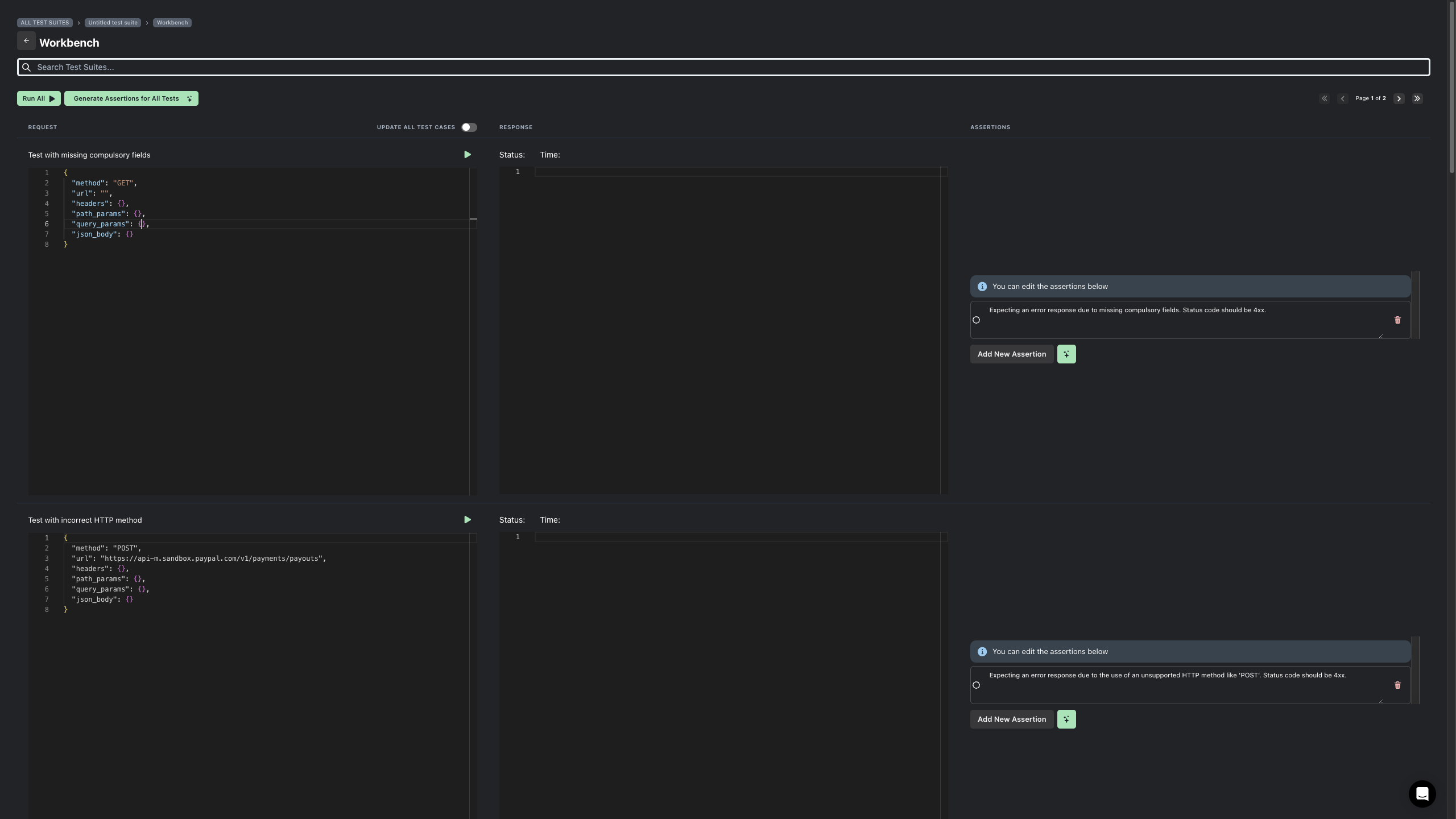 |
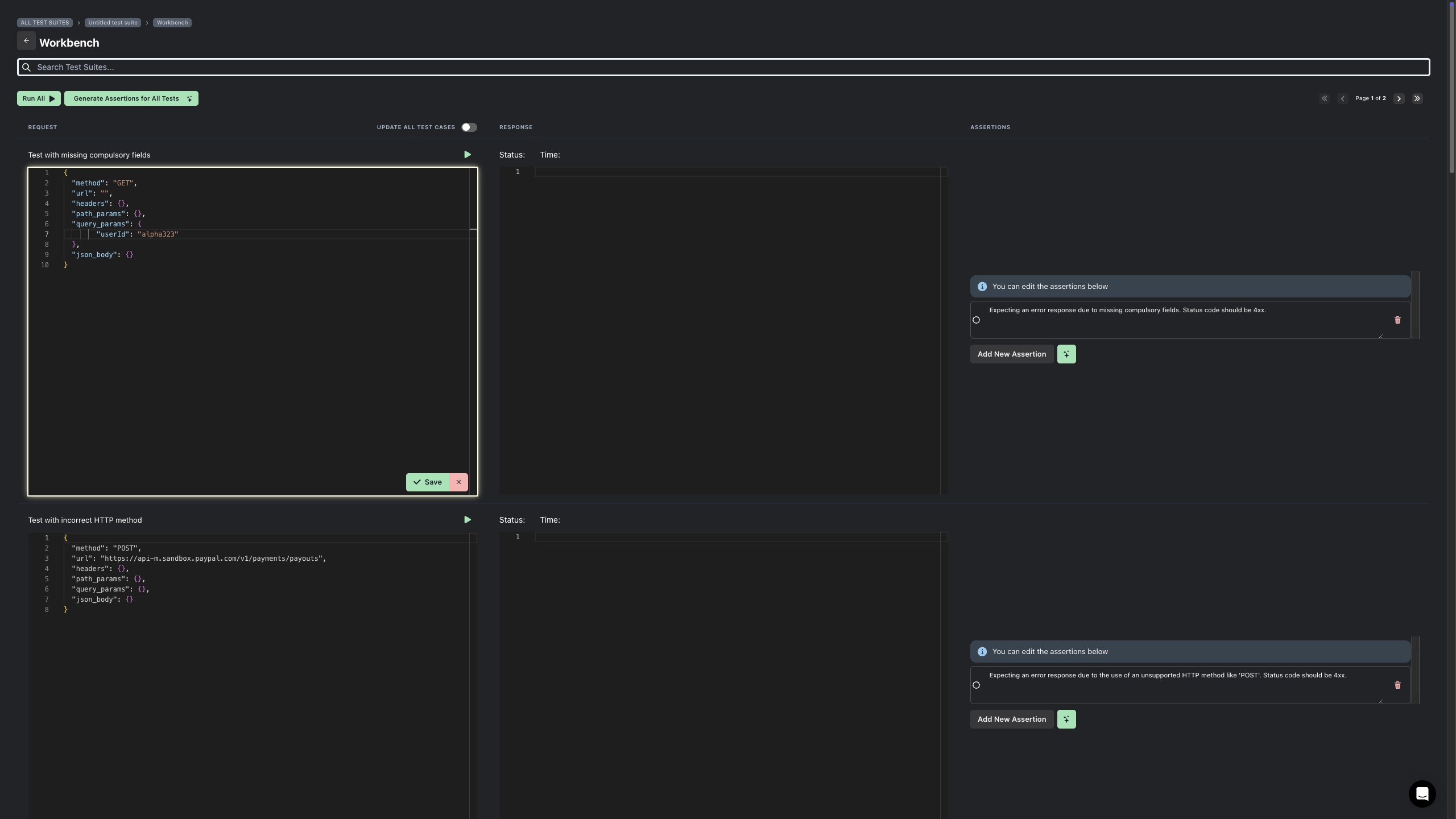 |
-
Saving Changes
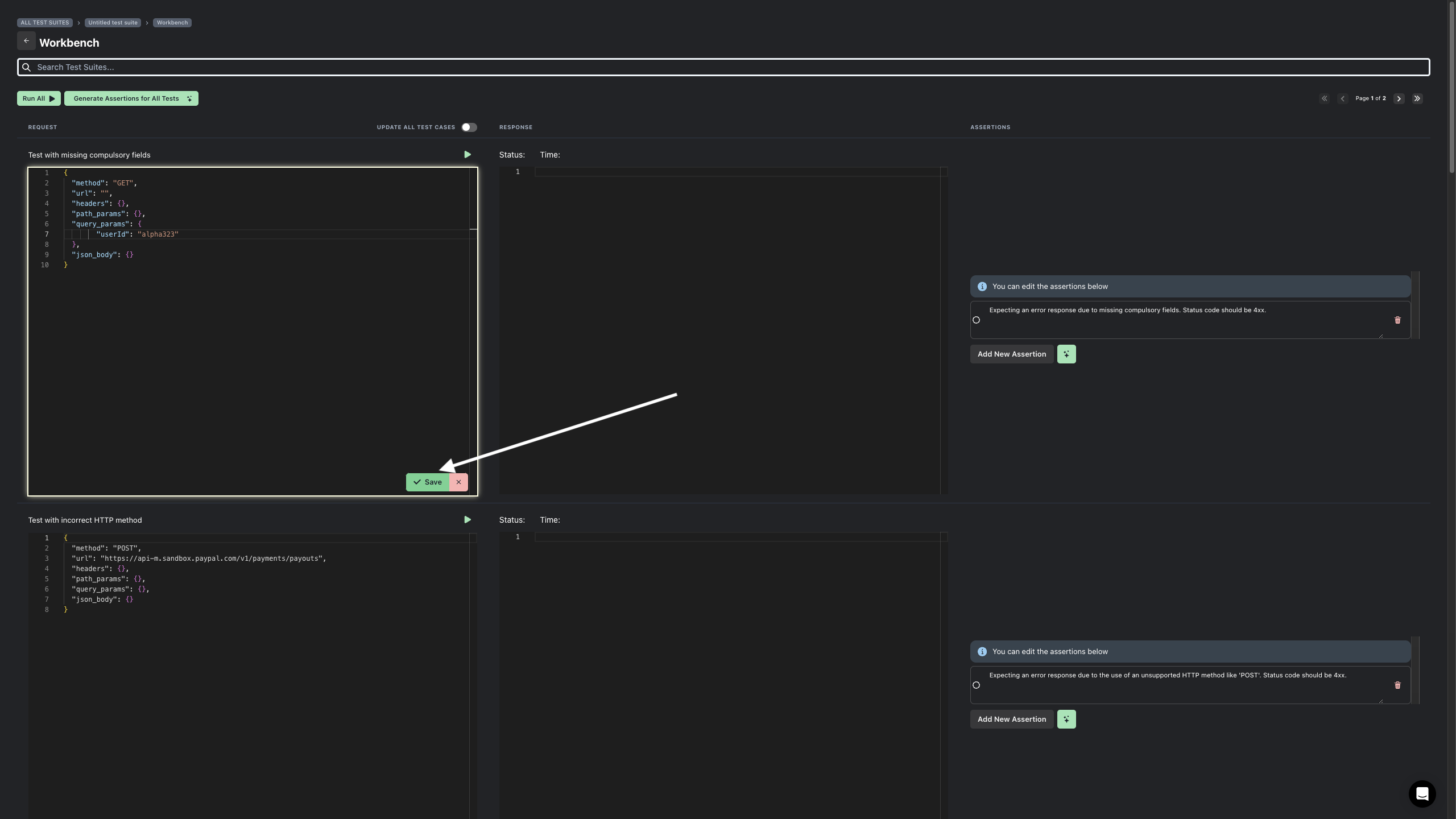
- Click the "Save" button at the bottom right.
- Changes are immediately reflected.
- Success notification appears.
-
Testing Changes
- Click the play button next to the test.
- Monitor status and execution time.
- Check the response panel for results.
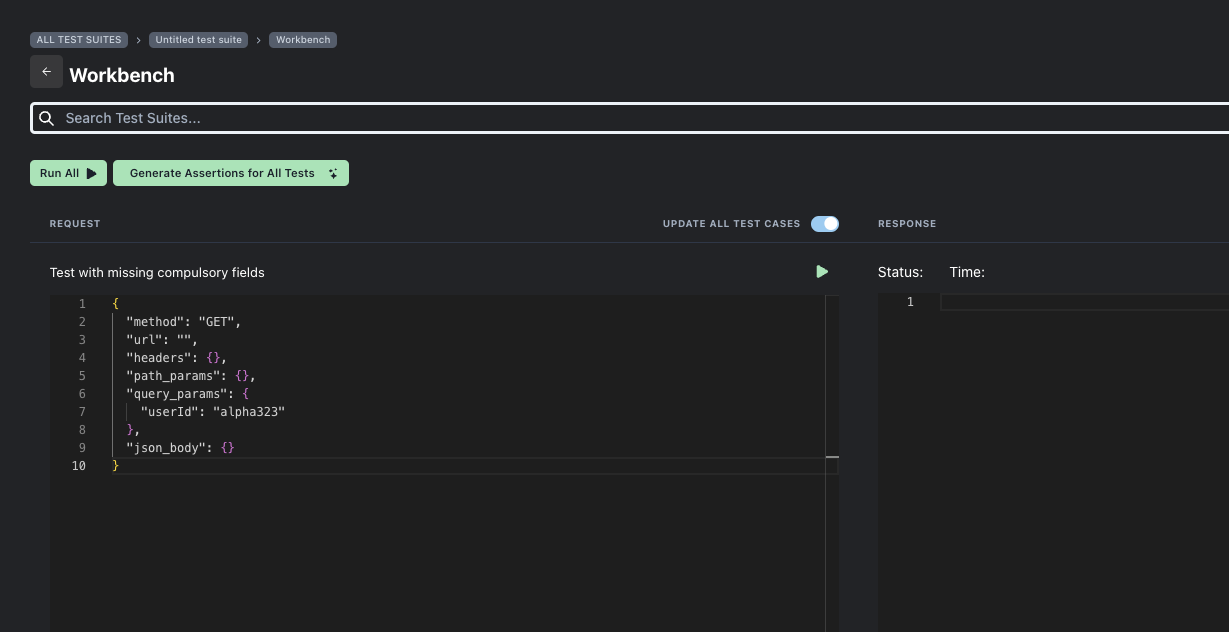
Batch Updates
-
Enable Batch Mode
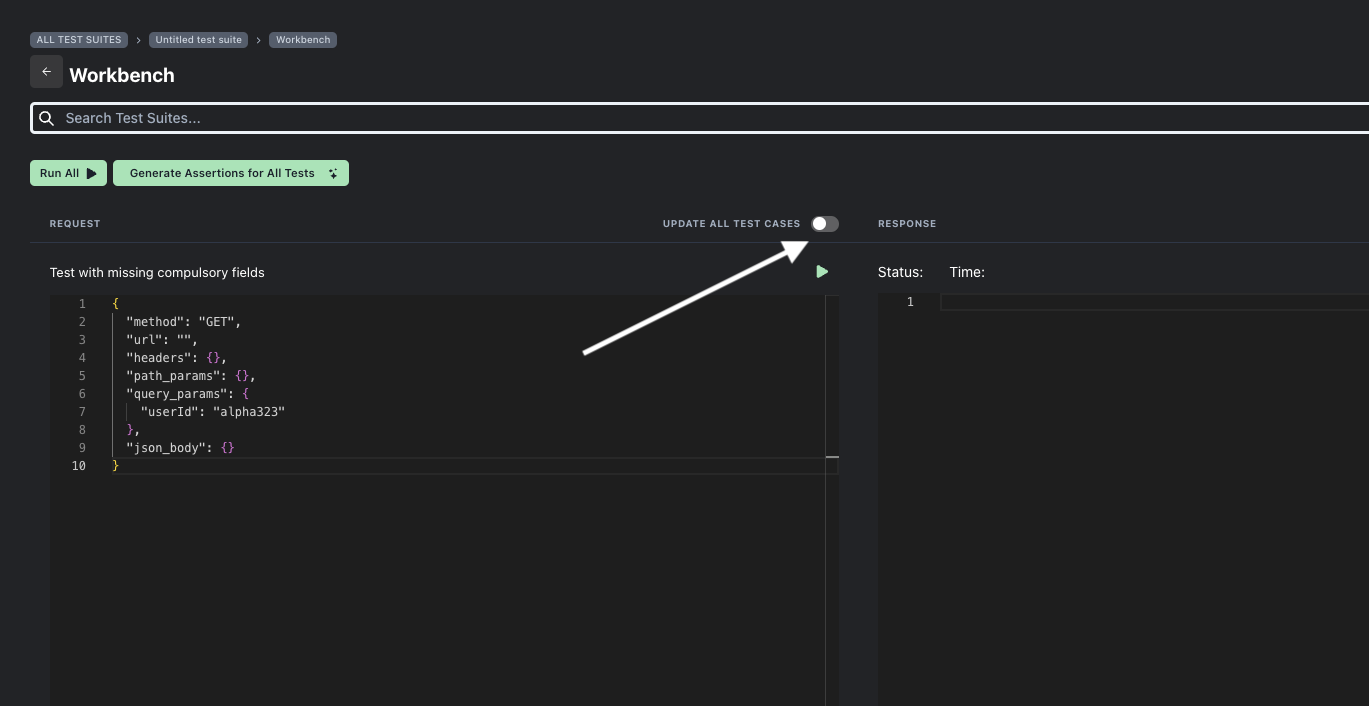
- Locate the "UPDATE ALL TEST CASES" toggle switch.
- Toggle on for batch operations.
- Visible indicator shows when active.
-
Making Batch Changes
- Edit request configuration.
- Changes show in the comparison view.
- Review highlighted modifications.
- Navigate through affected tests.
-
Applying Updates
- Review all changes.
- Click "Save" to apply.
- Wait for success confirmation.
Working with Variables
Accessing Variables
- Click the "Variables" button in the toolbar.
- Modal displays all available variables.
- Variables panel shows:
- Variable names
- Current values
- Copy and delete options
Using Variables
{
  "api_key": "HFRCG8W2TZVW6JNW",
  "base_url": "https://www.alphavantage....",
  "some_value": "DEFAULT123"
}
Managing Variables
-
Adding Variables
- Click the "Add Variable" button.
- Enter name and value.
- Save a new variable.
-
Editing Variables
- Click the copy icon.
- Modify value.
- Changes save automatically.
-
Deleting Variables
- Click the trash icon.
- Confirm deletion.
Best Practices
1. Before Updates
- Review current configuration.
- Check available variables.
- Plan your changes.
- Understand the test purpose.
2. During Updates
- Use proper JSON formatting.
- Leverage variables effectively.
- Test changes incrementally.
- Monitor for errors.
3. After Updates
- Run tests to verify changes.
- Check response data.
- Review any warnings.
- Document significant changes.
Common Issues and Solutions
1. JSON Syntax Errors
- Check for proper formatting.
- Verify quotation marks.
- Ensure valid values.
- Look for missing commas.
2. Variable Issues
- Verify variable names.
- Check variable values.
- Ensure proper syntax.
- Confirm variable availability.
3. Save/Update Problems
- Validate JSON structure.
- Check for unsaved changes.
- Review error messages.
- Try incremental saves.
Pro Tips
1. Efficient Updating
- Group similar changes.
- Use variables for common values.
- Test systematically.
- Maintain organization.
2. Quality Assurance
- Test after each change.
- Verify critical functionality.
- Monitor performance.
- Document updates.
3. Batch Operations
- Use for similar tests.
- Review all changes carefully.
- Test representative samples.
- Verify expected behavior.
4. Variable Management
- Use descriptive names.
- Keep values updated.
- Remove unused variables.
- Document variable purposes.