
Running tests with data
NOTE: This is available only for select users. If you're interested in enabling this, please reach out to us at support@kusho.ai or your RM.
This is a memory-intensive browser operation. If the page becomes slow or crashes while running a data file, try again with a smaller CSV, fewer parallel rows, or summary-only results.
Kusho lets you run the same API test or E2E workflow multiple times using rows from a CSV file. Each CSV row is treated as one run. The values in that row are available as variables during request resolution, pre-run scripts, post-run scripts, and assertions.
Use this when you want to validate the same API or workflow against multiple users, accounts, payload values, IDs, or edge-case inputs without creating a separate test case for each data set.
CSV format
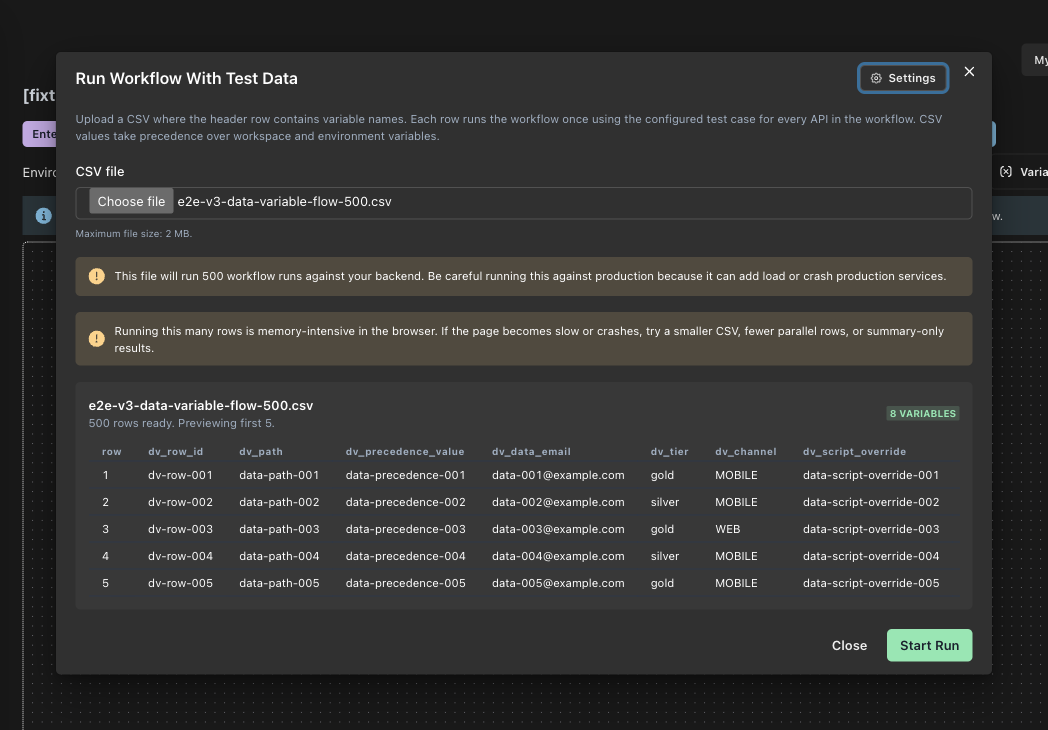
Upload a CSV file with a header row. Each header becomes a variable name, and each row below it becomes one run.
For example:
user_id,email,tier
101,alice@example.com,free
102,bob@example.com,pro
103,charlie@example.com,enterprise
In the request, scripts, and assertions, you can refer to these values using the same variable name:
{
  "userId": "{{user_id}}",
  "email": "{{email}}",
  "tier": "{{tier}}"
}
Running a single API with data
- Open the test suite page.
- Click Run with Data.
- Upload a CSV file.
- Review the detected rows and columns.
- Click Run.

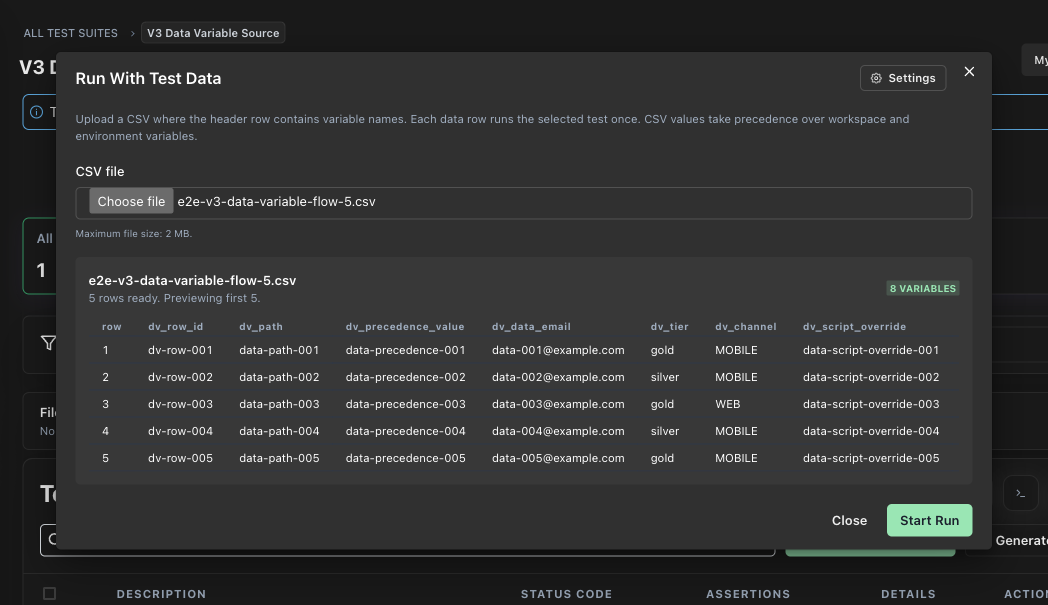
Kusho runs the default test case once for each row in the CSV. For this mode of running, the default test case is the first test case of the test suite.
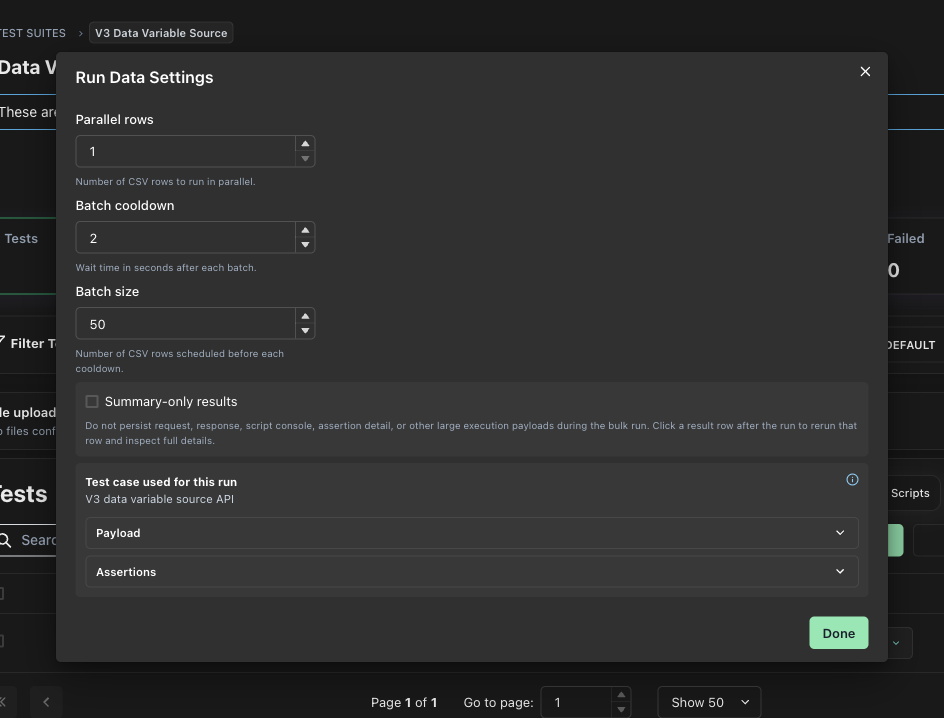
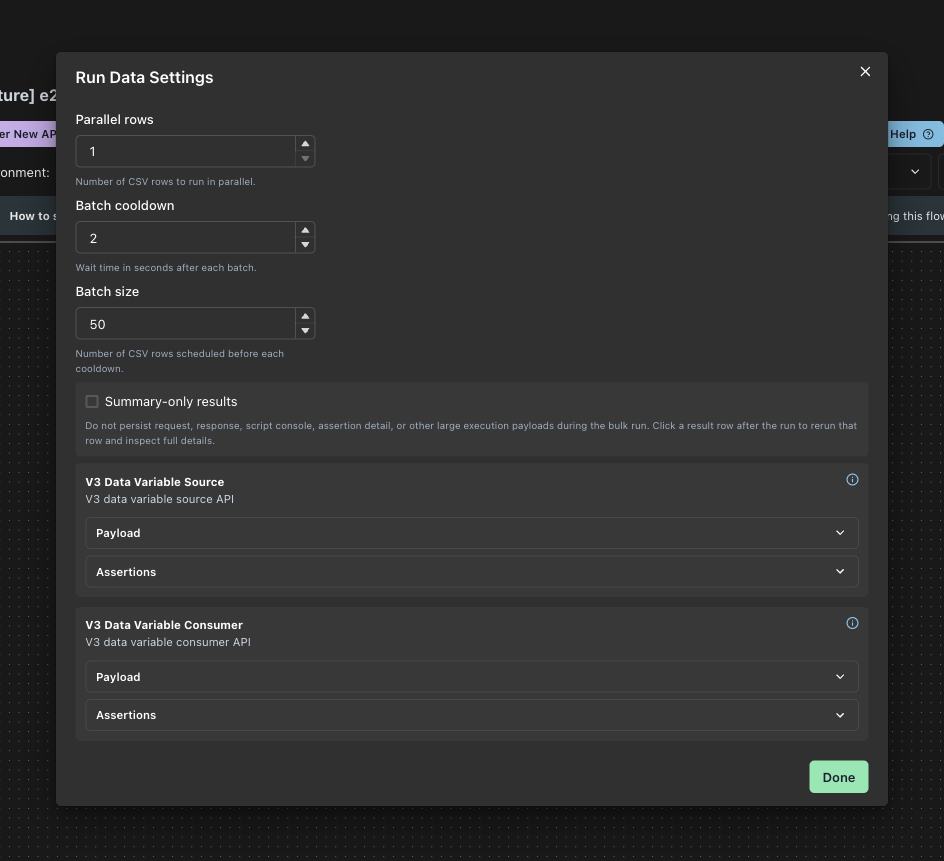
Open settings from the run modal to see the test case that will be used, along with its payload and assertions. The payload and assertions are collapsed by default; expand them when you want to inspect the exact method, URL, headers, path params, query params, request body, and assertions used for the run.
Running an E2E workflow with data
- Open the E2E workflow.
- Click Run with Data.
- Upload a CSV file.
- Review the detected rows and columns.
- Configure settings if needed.
- Click Run.

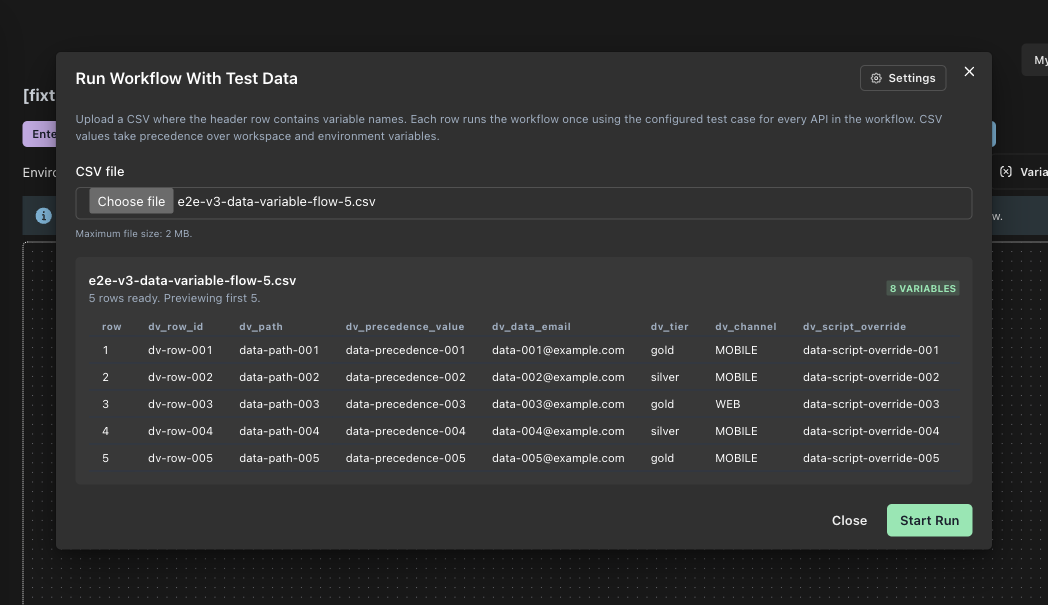
For E2E workflows, each CSV row drives one full workflow run. If your workflow has three APIs and your CSV has ten rows, Kusho runs the workflow ten times, once per row.
Kusho uses the default test case for each API in the workflow. For this mode of running, the default test case is the first test case of that test suite. Settings shows each API in workflow order, along with the payload and assertions that will be used.
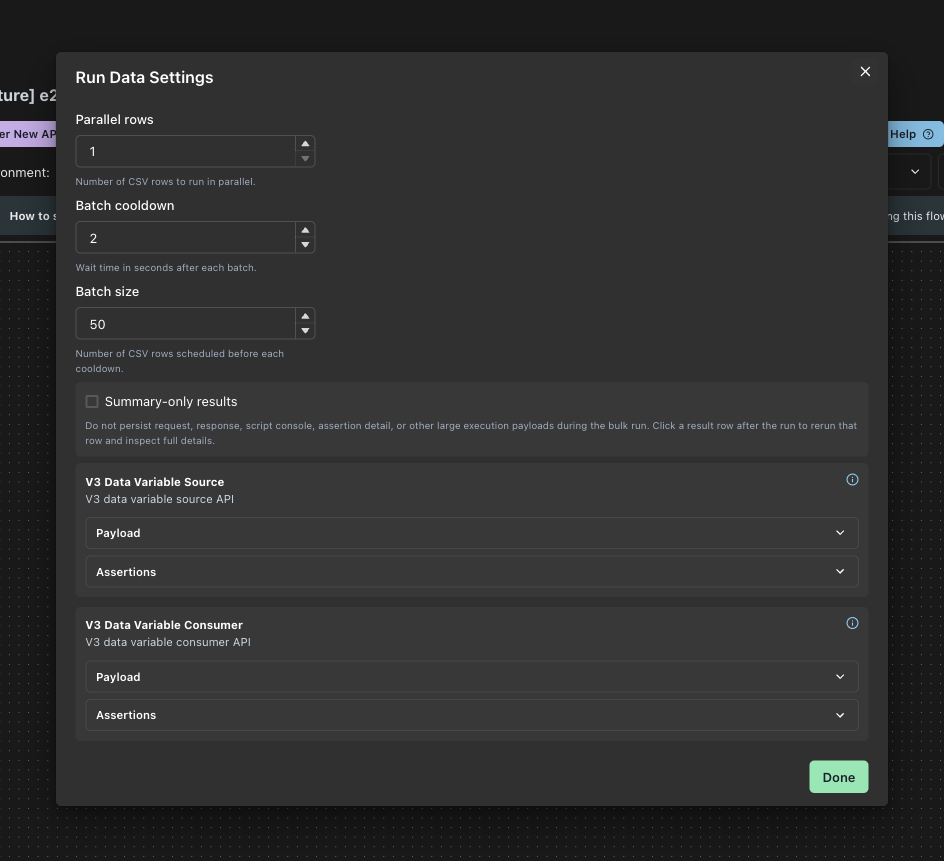
You can also configure how many rows should run in parallel. A higher value can finish faster, but it also creates more browser and API load at the same time.
Variable resolution
CSV row values are available as data variables during the run.
When resolving {{variable_name}} placeholders, the row value is used ahead of the workspace or environment variable with the same name. This means a CSV column can override an existing variable for that run without changing the saved workspace variable.
For example, if your workspace has:
email = default@example.comand your CSV row has:
email
alice@example.com
then {{email}} resolves to alice@example.com for that row.
Pre-run scripts can still update variables. If a pre-run script updates a variable, the script-updated value is used for request resolution after the script runs.
Postman-style data access in scripts
In pre-run and post-run scripts, row data is available through pm.iterationData and data.
const email = pm.iterationData.get("email");

pm.test("row email is present", function () {
  pm.expect(data.email).to.equal(email);
});
The current row number is available through pm.info.iteration, and the total row count is available through pm.info.iterationCount.
Data variables are run-level values. Kusho does not save CSV row values back to your workspace variables unless your script explicitly writes a value using supported variable APIs.
Assertions
Kusho assertions run for each row.
The result for a row is based on the assertions that ran for that row. If any assertion fails, that row is marked as failed.
In E2E data runs, each API in the workflow has its own assertion result. The row is marked failed if any API in that workflow run has failing assertions or execution errors.
Viewing run results
After a data run, Kusho shows one result row per CSV row.
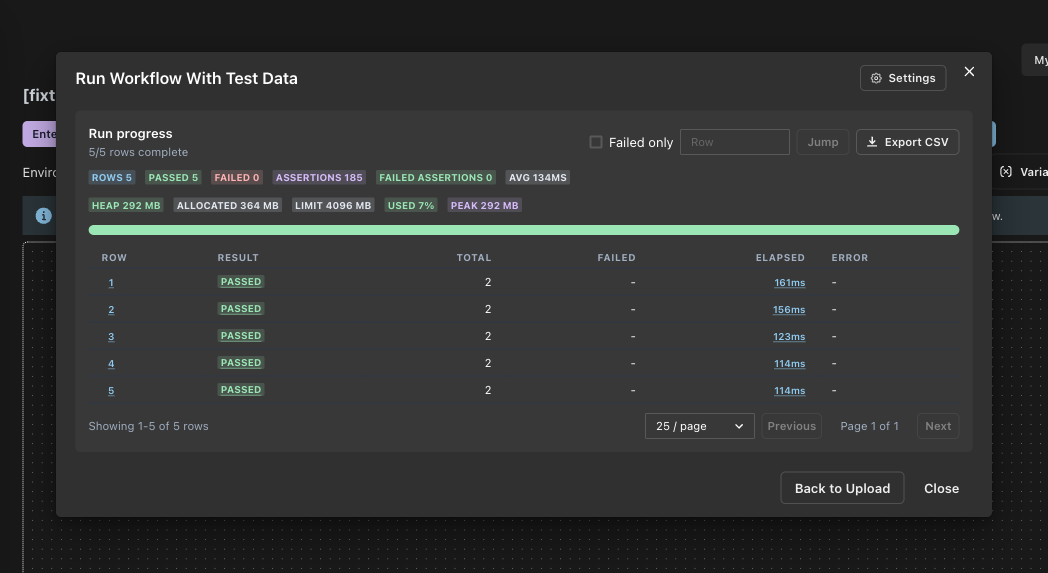
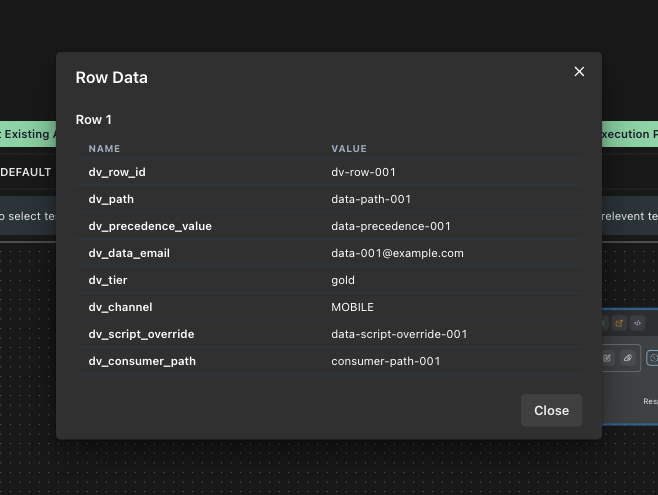
You can click the row number to view the data used for that run.
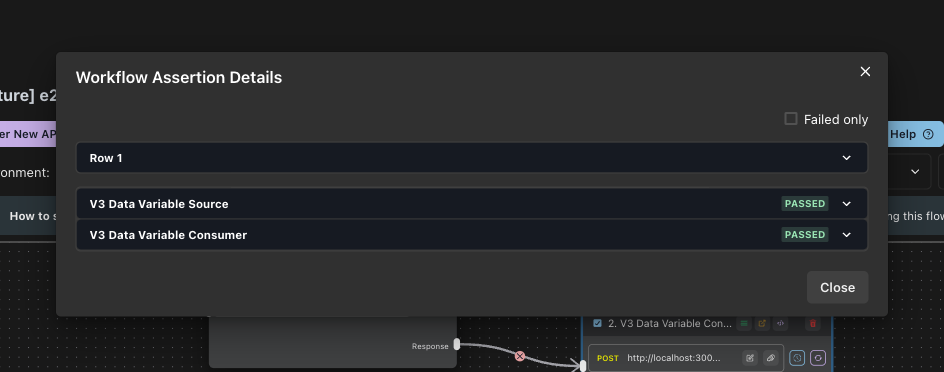
You can click the status to view assertion details. For E2E runs, assertion details are grouped by API.
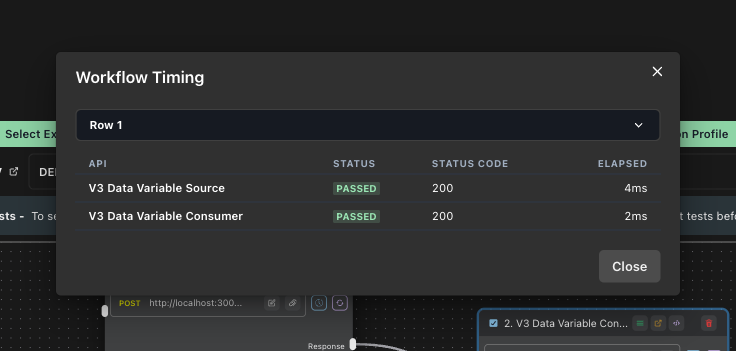
In E2E runs, you can also click elapsed time to see timing details for each API in the workflow run.
The details view shows the request, response, assertions, and console output captured for that row. The response view focuses on the response body, headers, status code, error, and elapsed time.
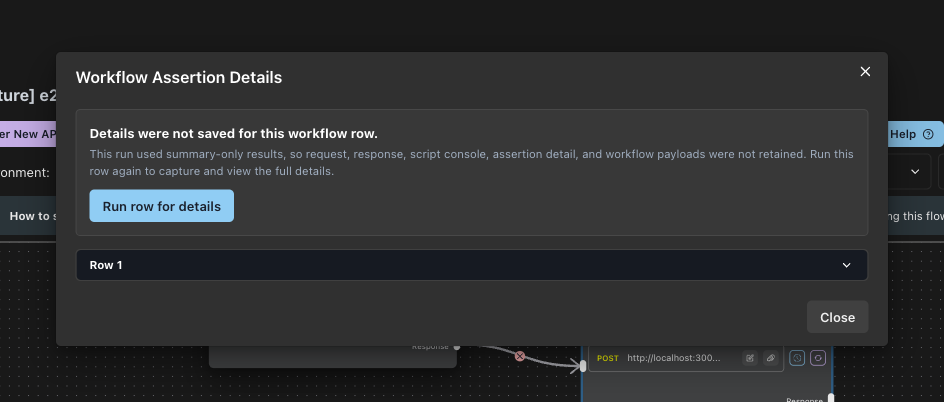
If you enable summary-only results, Kusho stores only the lightweight result summary during the bulk run. Request, response, assertion detail, script console, and other large execution payloads are not retained for each row. To inspect a row in summary-only mode, click that row and run it again from the details view.
Notes and limitations
Data runs currently support up to 600 CSV rows per run.
Large CSV files can create significant browser and API load. Start with a small file to validate the setup, then increase the row count once the run is working as expected. If the CSV has more than 50 rows, Kusho shows a warning because the run can make that many calls to your API. Be careful running large data files against production systems.
If your API uses file upload bodies, configure the file upload settings separately. CSV data variables can drive text values, but attached files still use the file upload configuration for the test suite or test case.