
Update from spec
Use Update from spec when your API contract has changed and you want KushoAI to update an existing test suite from an OpenAPI or Postman JSON spec.
This flow starts inside a test suite. Open the test suite you want to update and click the Update from spec button.
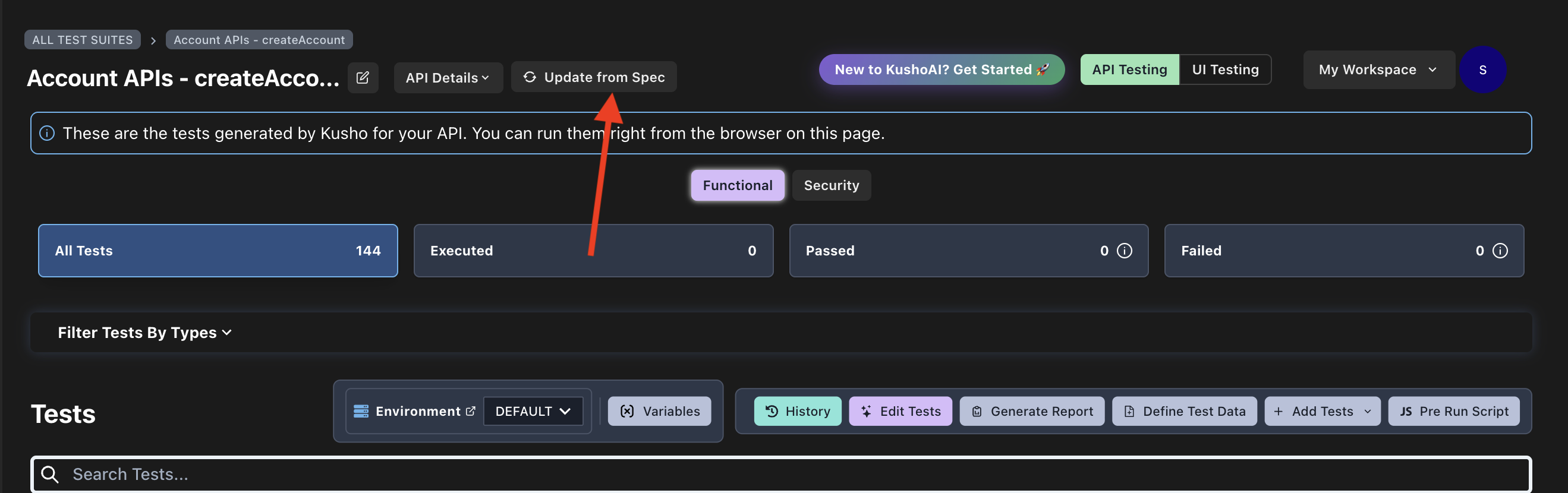
When to use this
Use this feature when:
- Your OpenAPI or Postman spec has changed.
- You want to compare the updated spec with an existing KushoAI test suite.
- You want KushoAI to suggest meaningful request payload changes before you apply them.
Once you apply the changes, your test suite will be edited.
Step 1: Upload your spec
Upload an updated OpenAPI or Postman JSON spec.
KushoAI extracts the APIs from the spec and compares them with the test suite you are currently viewing.
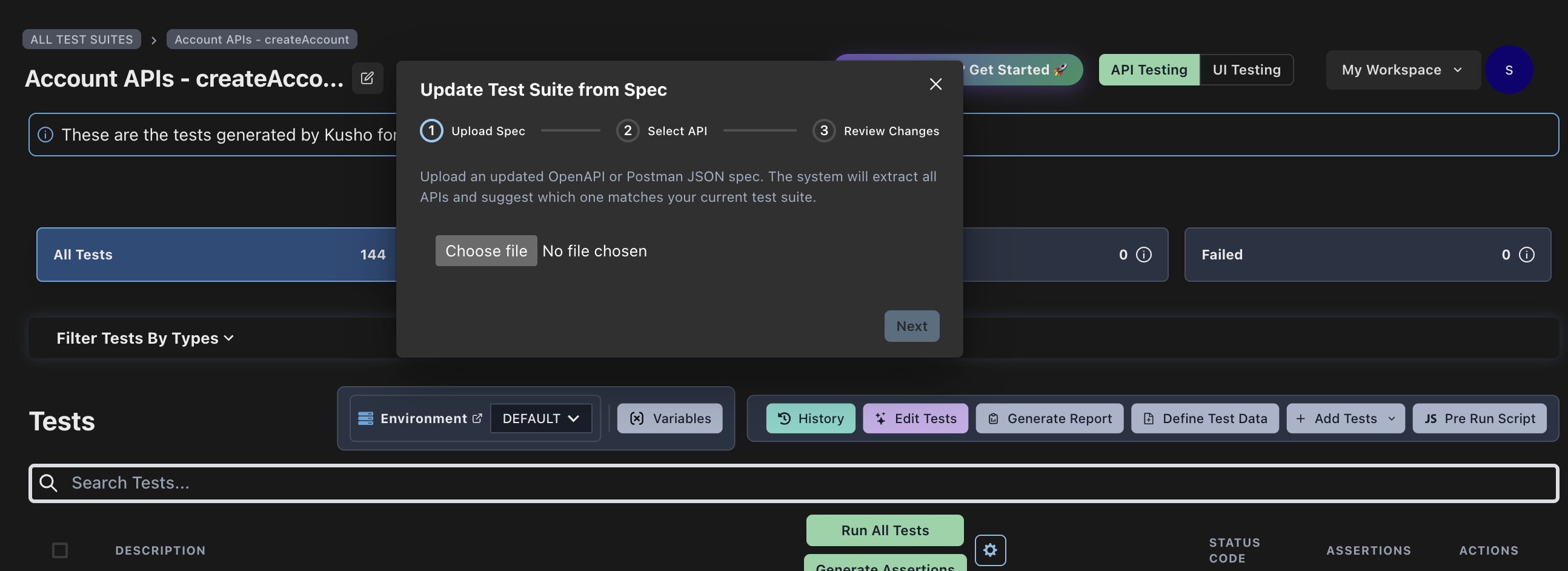
Step 2: Select the matching API
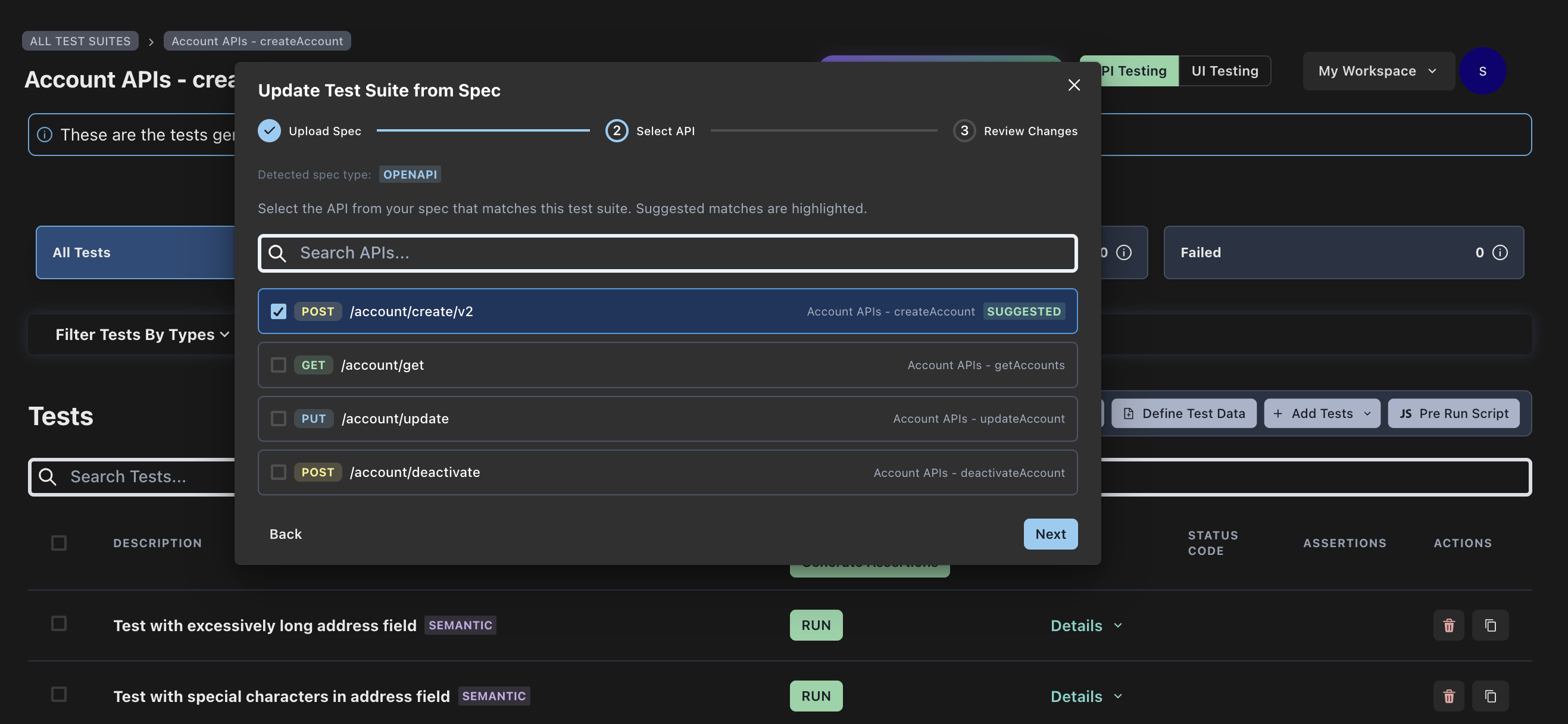
After the spec is processed, KushoAI shows the APIs found in the uploaded spec.
The API that most closely matches your current test suite is preselected. Suggested matches are based on details like the API path and HTTP method.
You can keep the selected API or choose a different one from the list.
Step 3: Review the AI-generated diff
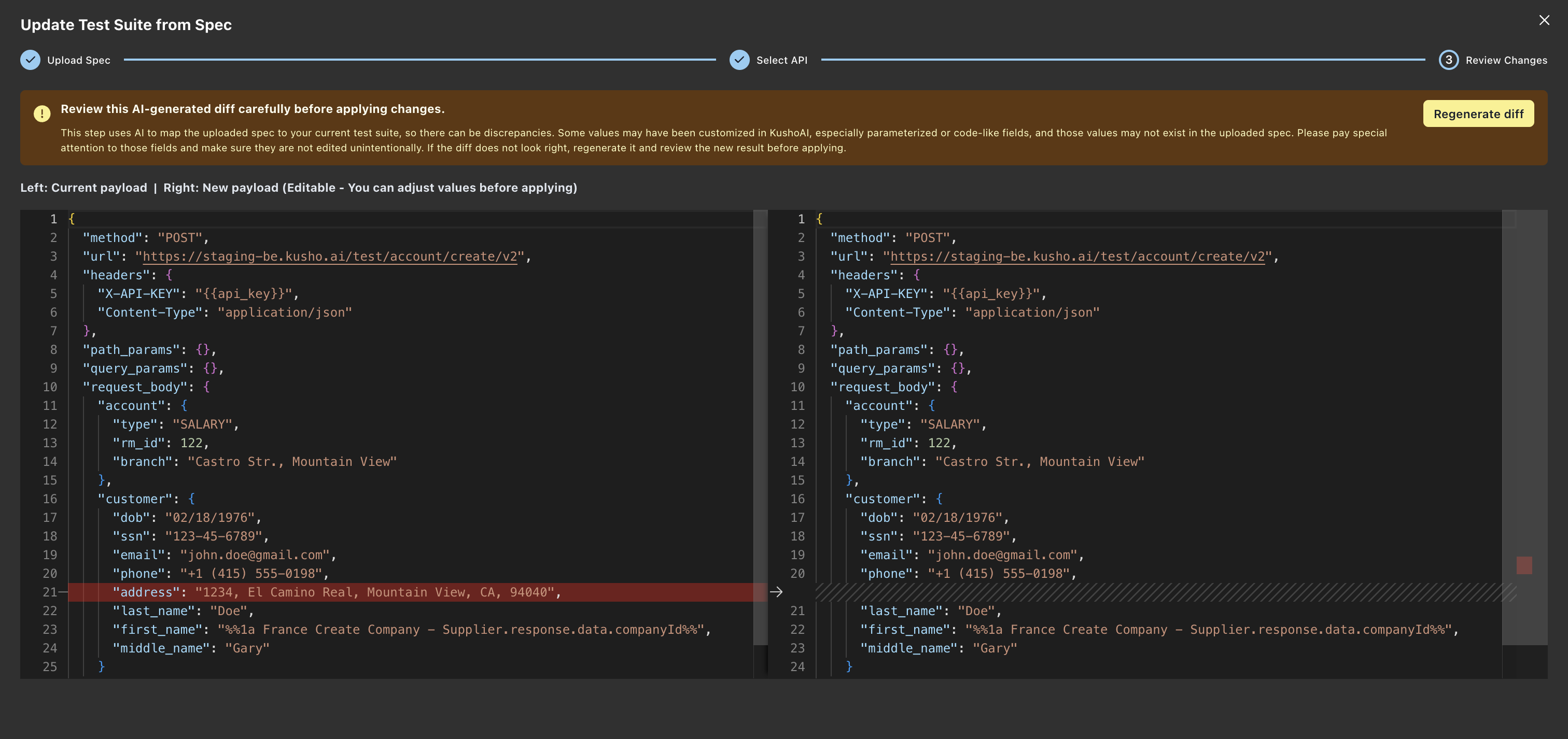
KushoAI compares your existing test suite with the selected API from the uploaded spec and generates a diff.
The diff shows:
- The current payload on the left.
- The suggested new payload on the right.
The right side is editable, so you can adjust the suggested payload before applying it.
⚠️ Review carefully before applying
The diff is AI-generated. KushoAI uses AI to compare your existing test suite with the provided spec and suggest meaningful changes, but there can be discrepancies.
Pay special attention to values that were customized in KushoAI but may not be present in the uploaded spec. This is especially important for:
- Parameterized fields.
- Code-like fields.
- Variables or placeholders.
- Values added manually after the test suite was created.
User changes take preference. If the uploaded spec does not include a field you customized in KushoAI, make sure the diff does not remove or rewrite it unintentionally.
If the diff does not look right, click Regenerate diff. KushoAI will run the comparison again and show a new diff.
Applying the changes
After reviewing the diff:
- Make any edits you need on the right side.
- Click Apply Changes.
- Confirm the update.
Once applied, KushoAI updates the test suite payload and associated test cases.
Note: Based on the diff, KushoAI may also add new tests for new fields and remove matching tests for deleted fields before syncing the active test cases in the suite.
Reverting an update from spec
If you think you made a mistake, you can revert the update from the test suite history.
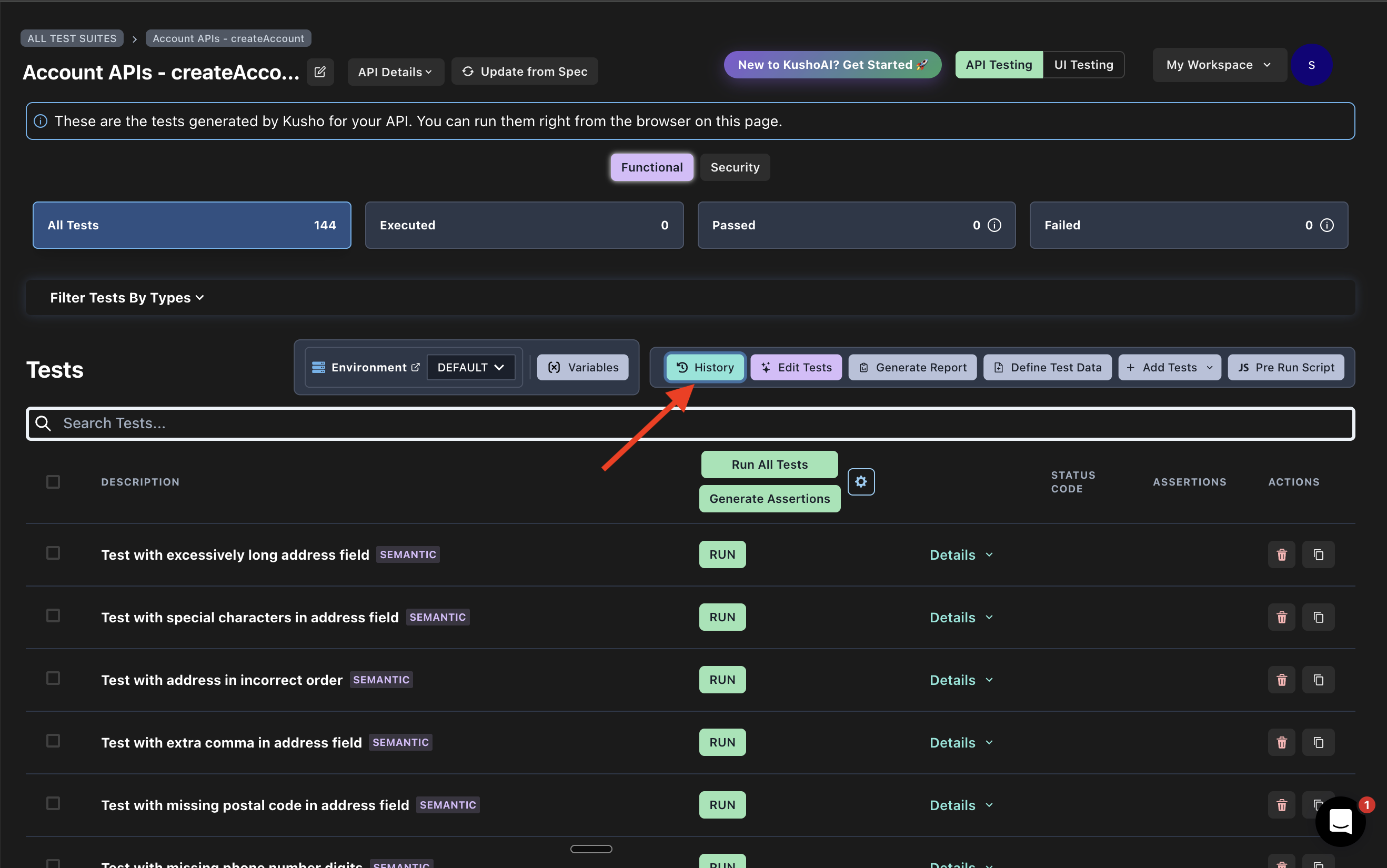
Go to the History section for the test suite. You will see a commit with the message:
Auto update: Applied new payloadEach commit in history represents a change that was applied to the test suite. To undo the update from spec change, restore the commit immediately before Auto update: Applied new payload.
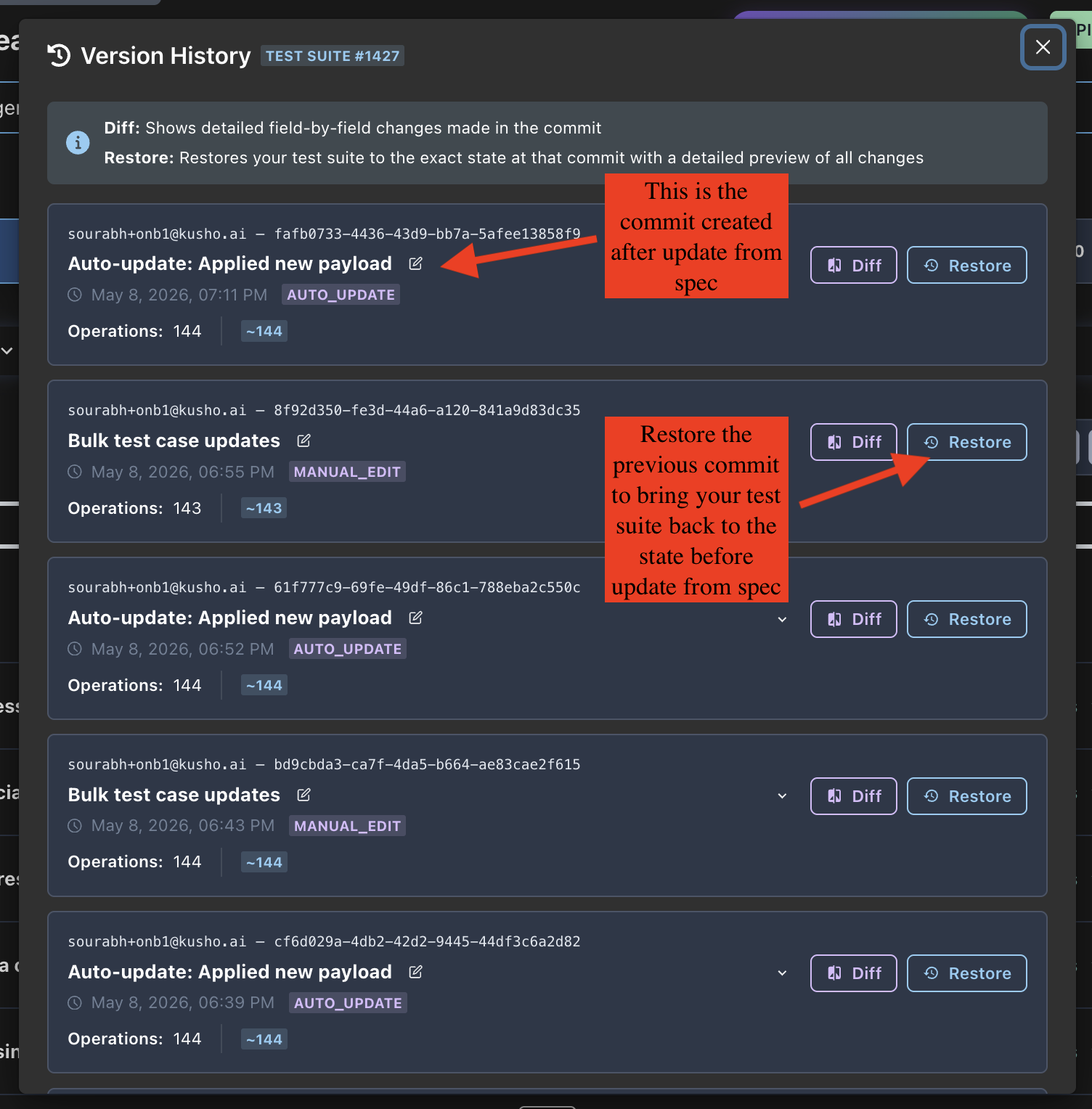
Restoring the previous commit brings your test suite back to the state it was in before the update from spec changes were applied.