AI Test Editor 🔒
Introducing our chat-based test editor assistant with real-time updates. Describe what you want to do with your tests using natural language and see the output instantly.
Note: The Advance Edit Test feature is available only on our Enterprise plan. Please reach out to us at enterprise@kusho.co to enable this for your team.
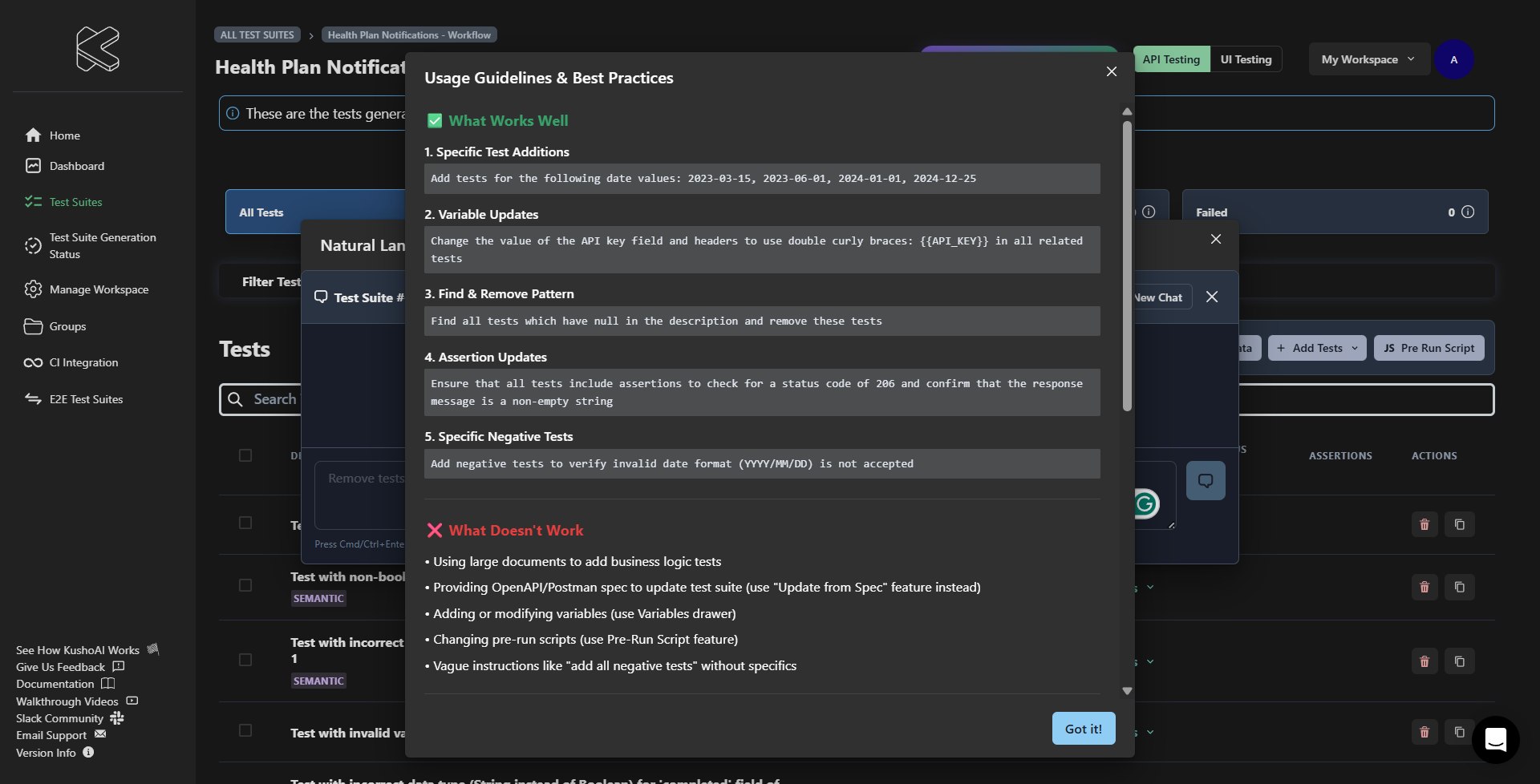
- Open your test suite where you want to add additional tests and click on "Edit Tests" button.
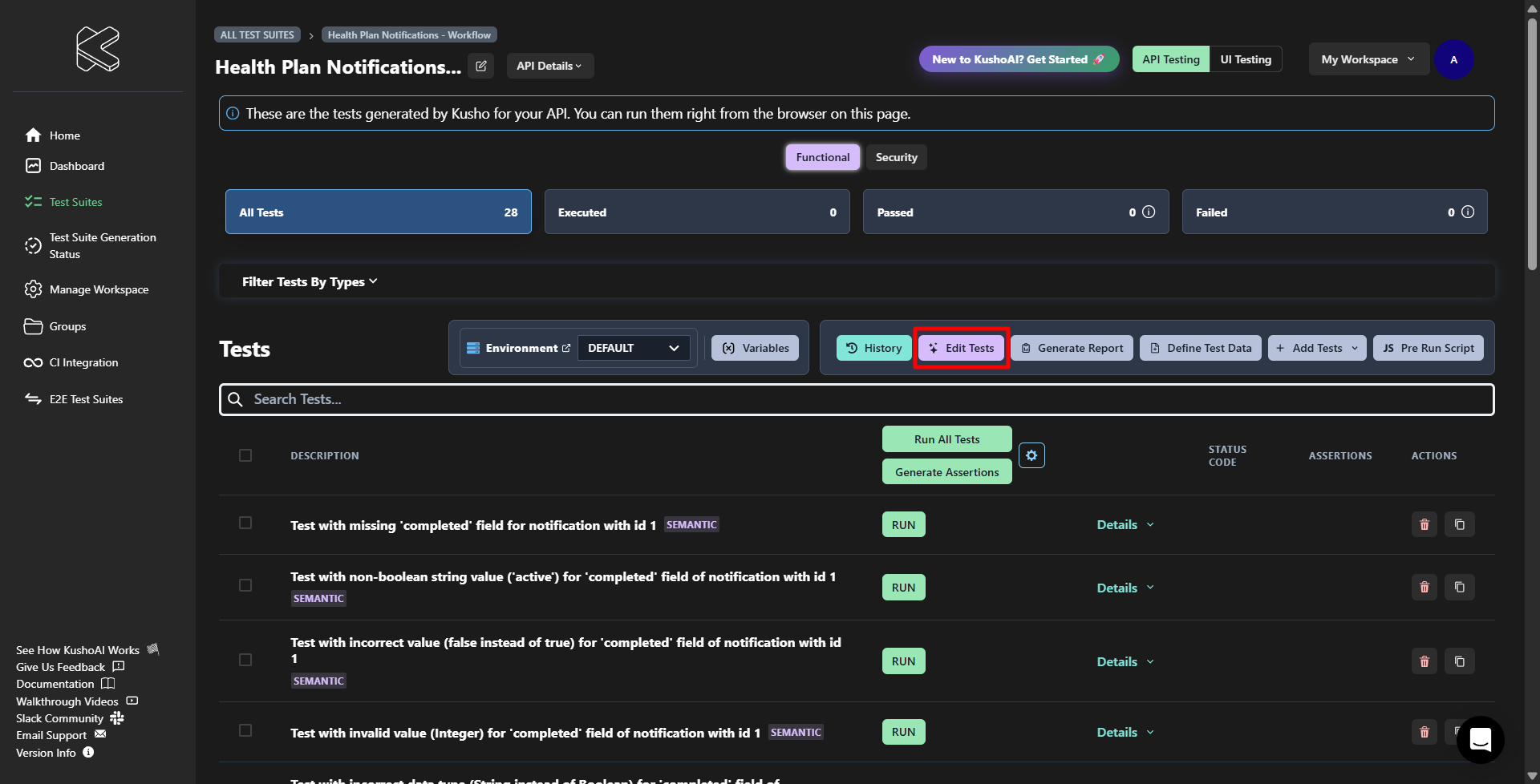
- A pop up will appear where you can check the Usage Guide that includes how to use the feature, best practices etc.
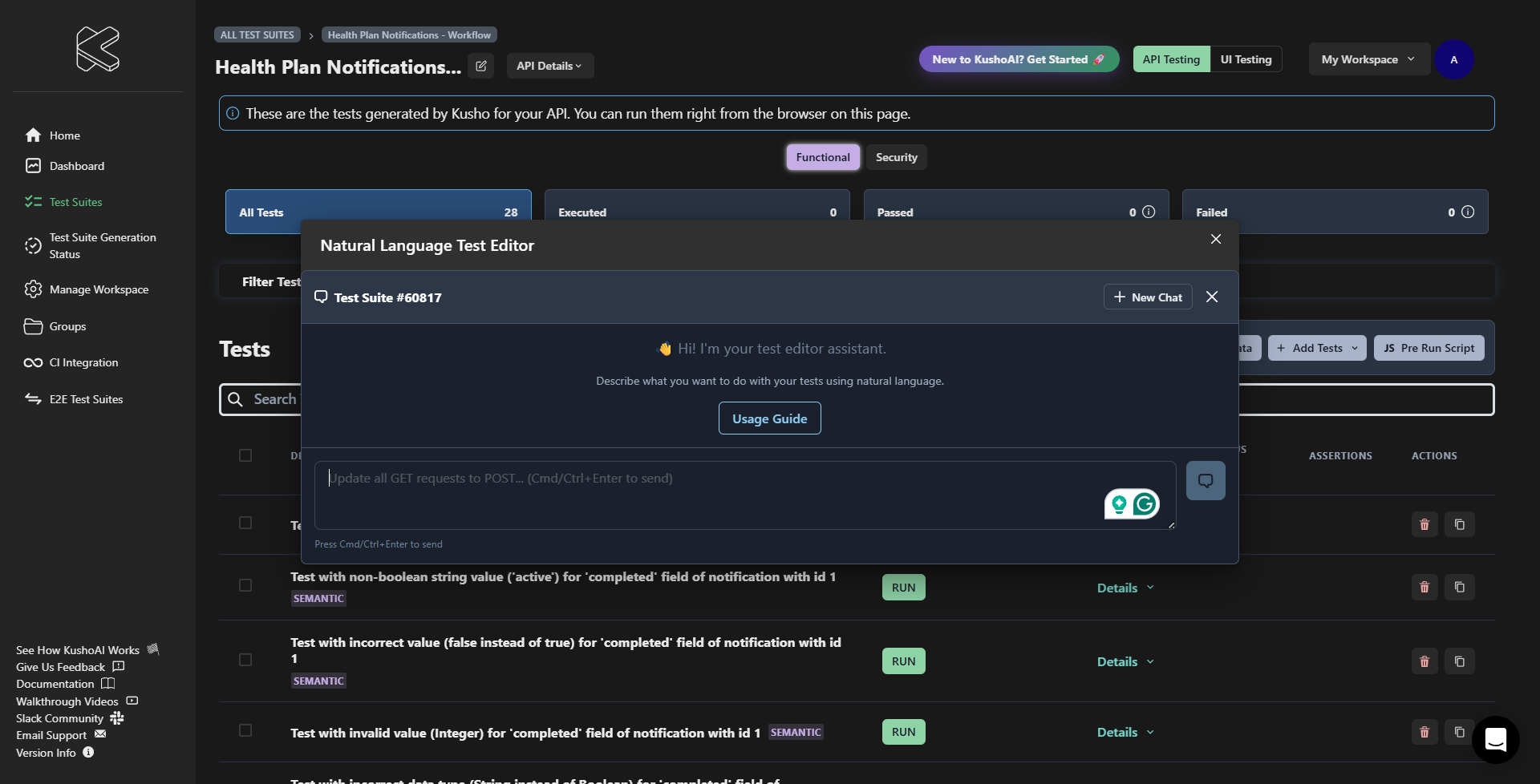
- Enter your prompt in the input field. For Example:
Add tests with emojis in description.
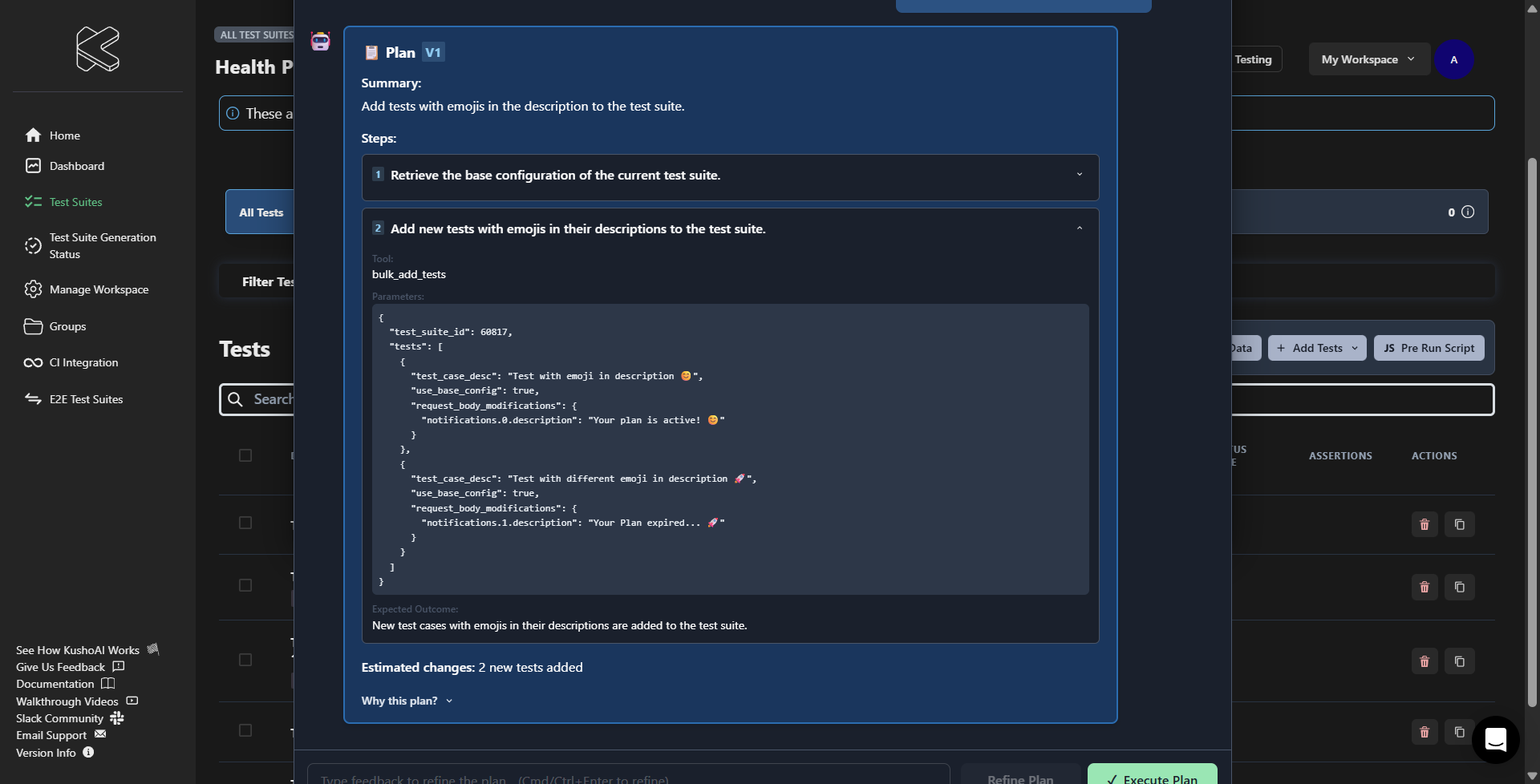
- After you enter your prompt, a plan will be created for you. You can check the whole plan by clicking on the dropdown button.
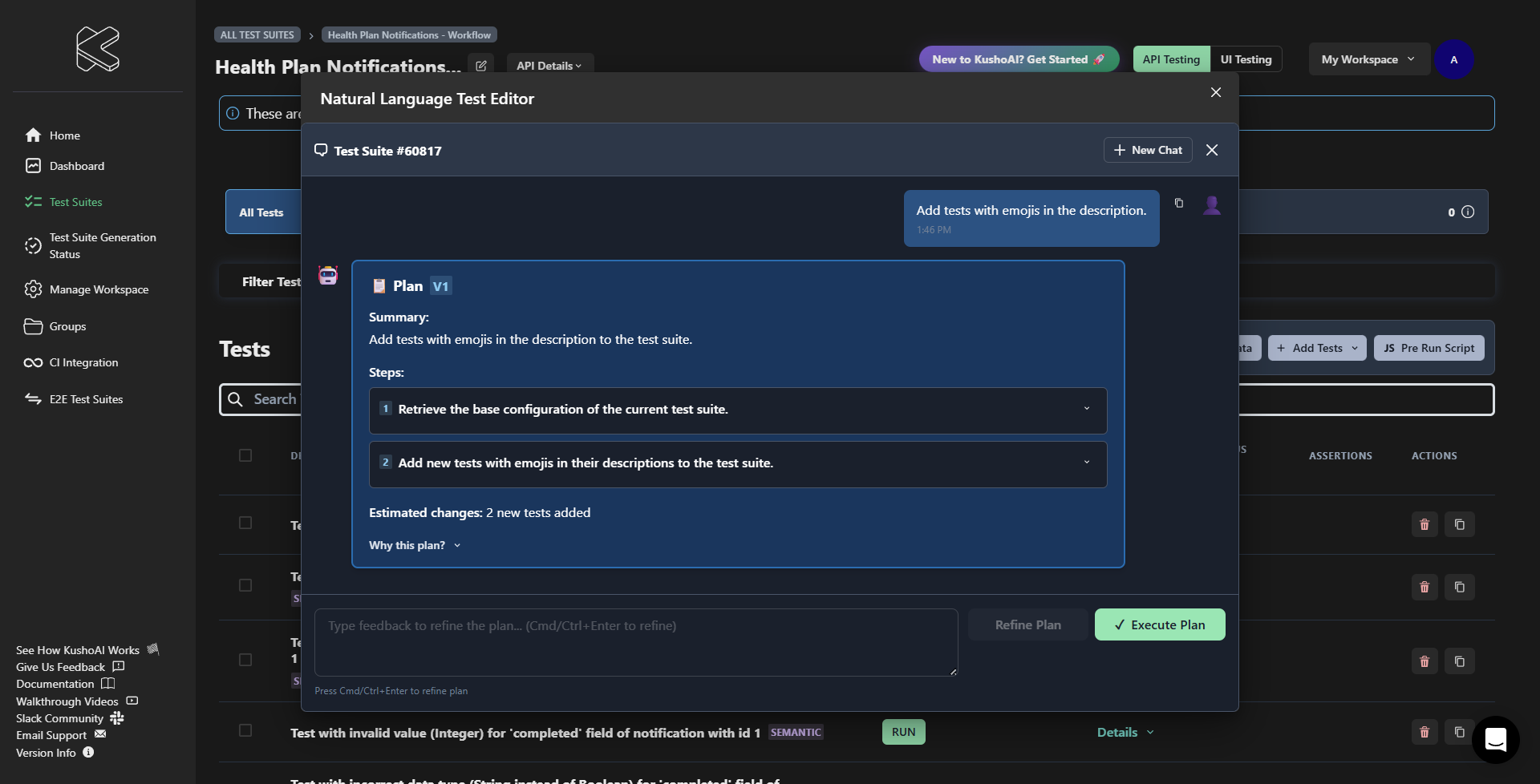
- You can refine the response or simply click on
Execute Planto start the process.
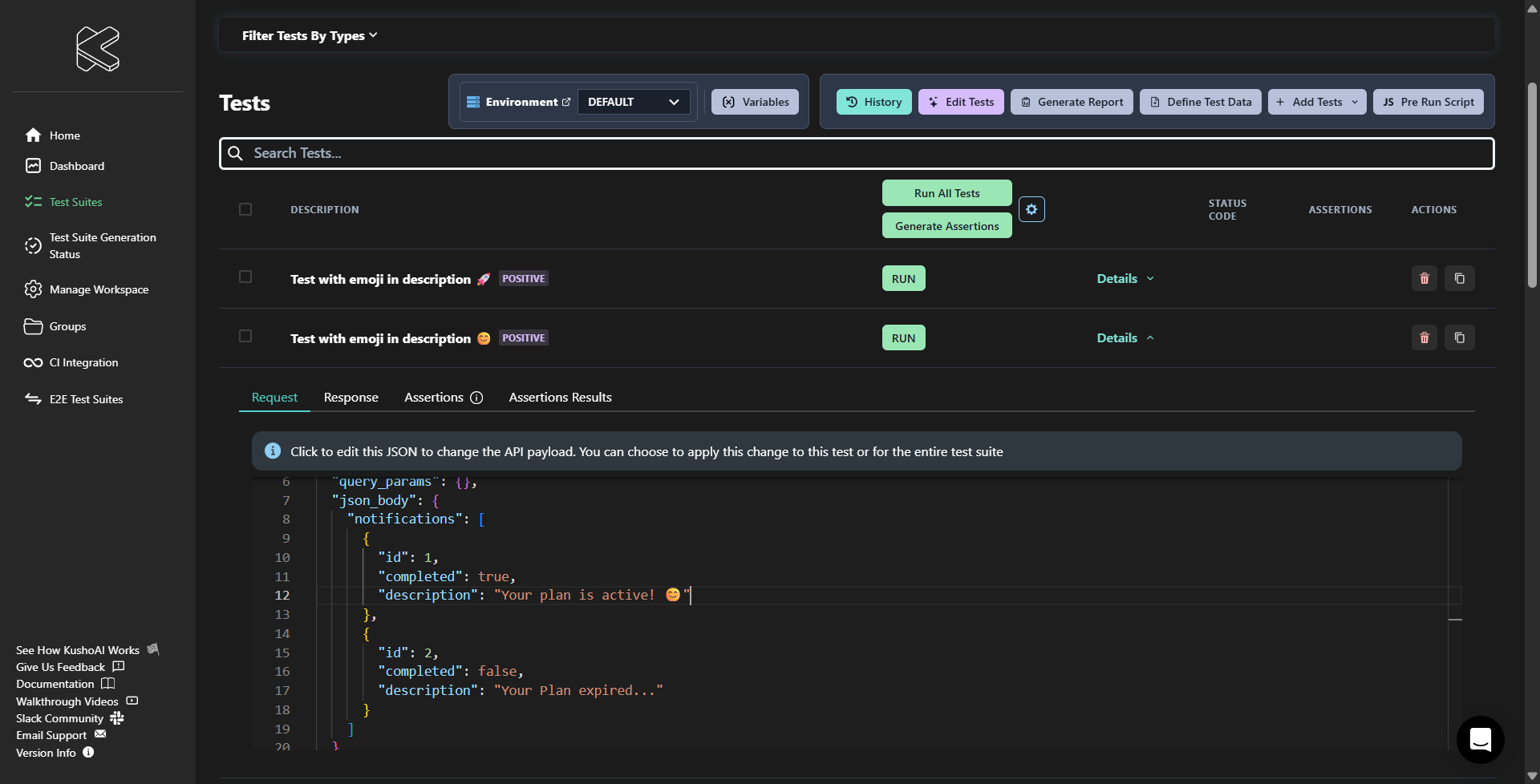
- After the execution is completed your tests will be edited.
Usage Guidelines
It is intended for users who want precise, reliable, and predictable changes to their tests.
What Works Well
Supported and recommended actions when updating test suites.
Specific Test Additions
Add tests for the following date values:
2023-03-152023-06-012024-01-012024-12-25
Variable Updates
- Update the API key field and headers to use double curly braces.
- Ensure this change is applied consistently across all related tests.
Find & Remove Pattern
- Find all tests where the description is
null. - Remove these tests from the test suite.
Assertion Updates
Ensure every test includes assertions that:
- Verify the response status code is
206. - Confirm the response message is a non-empty string.
Specific Negative Tests
Add negative test cases to ensure invalid date formats are rejected:
YYYY/MM/DD
What Doesn’t Work
Unsupported or discouraged actions.
- Using large documents to add business logic tests
- Providing OpenAPI or Postman specifications to update the test suite
- Use the Update from Spec feature instead
- Adding or modifying variables
- Use the Variables drawer
- Changing pre-run scripts
- Use the Pre-Run Script feature
- Using vague instructions such as “add all negative tests” without clear criteria
Best Practices
Recommended guidelines for better results.
Use the Find-Then-Act Pattern
First identify tests that meet a condition, then apply the required change.
Example:
- Find all tests for the
GET /productsendpoint - Add pagination parameters to those tests
Be Specific and Descriptive
Clearly define conditions and expected outcomes.
Good example:
- Add tests to verify
/usersreturns400when theemailfield is missing
Bad example:
- Add validation tests
Use Concrete Examples
Provide exact values and real scenarios.
Example: Invalid phone numbers
"123"(too short)"abcdefghij"(non-numeric)"+1-800-INVALID"(contains letters)
5. Quick Tips
Practical advice to improve outcomes.
- Start small by testing with a simple request
- Be patient—complex changes may take time to process
- Always preview changes before applying
- Refine your prompt if the results aren’t perfect
- Specificity is key to getting high-quality results
You can also simply click on the Usage Guide button to check the best practics, limitation and more.